Crew mobile app
The saved stop order flows straight to the crew’s phone: stops, map, and completion.
Scheduling & routing
Build a perfect day once. Then repeat it. Calendar crews and route crews in one scheduler, drive-order optimization, memorized routes, and a rain-shift tool for when the weather has other plans.
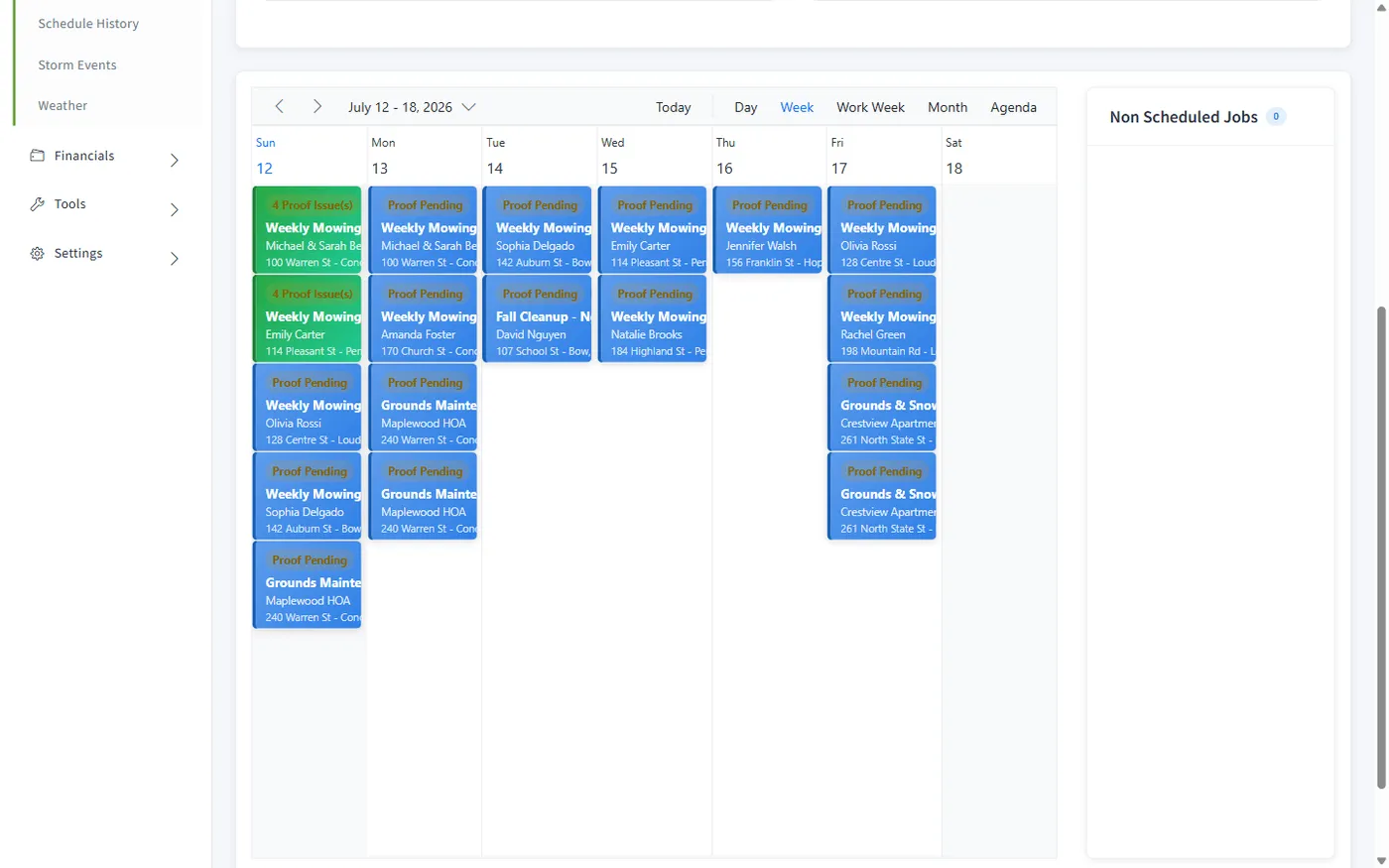
Two modes, one scheduler
An install crew is booked 9:00–11:30 at one property and 1:00–4:00 at another. A mowing crew has fourteen lawns on Tuesday and just works down the list. Forcing both into one calendar style is how generic tools end up fighting you every morning.
Here, the mode follows the crew. Flip a single setting and that crew gets either a familiar drag-and-drop calendar with start and end times, or a date-only stop list where you control the order: stop #1, #2, #3. The Daily Dispatch board shows every crew’s day either way, with unassigned work waiting in a sidebar until you place it.
Pick a date and crew: the stops appear in order, with the crew’s depot as the start and finish point.
One click reorders the stops into an efficient driving order. Prefer your own judgment? Drag stops by hand.
Save the order as a named template ("Tuesday North Route") tied to that crew.
Next week: load the day, apply the template, save. The stop numbers flow through to the crew’s phone.
Route memorization
The same loop of properties repeats week after week. So why rebuild the order every morning? Optimize the drive order once, tweak it with the local knowledge no algorithm has, then memorize it. Applying a saved route to a future day takes seconds.
Before you commit the day, the capacity check compares the route’s estimated hours against the crew’s day and flags an overload, so the overstuffed Tuesday gets caught on the screen, not at 6 p.m. in the field.
Weather happens
When weather wipes out a day, you don’t drag thirty visits one by one. The Rain / Delay Shift tool moves a crew’s open schedule by however many days you need, and it previews first, telling you exactly how many visits will move and across which dates before anything changes. Completed work stays put. Skipped stops stay put. Nothing is double-booked.
Crews handle the small stuff in the field: skip a stop with a reason, flag a visit, mark work complete. Every status change shows up on the dispatch board, and every schedule change (reorder, shift, template apply) is written to a history you can check later.
Works together
The saved stop order flows straight to the crew’s phone: stops, map, and completion.
Program rounds generate their visits into the schedule inside each round’s window.
Storm events stand up a whole day of snow visits outside the normal schedule.
Completed visits flow straight into per-visit and batch billing.
Questions
Yes, and that’s the point. Each crew has a "Time Based" setting. Time-based crews get an hour-by-hour drag-and-drop calendar with day, week, and month views. Route crews get a date-only stop list you order on the Route Management page. Most companies run both at once: a route-style mowing crew and a time-based install crew.
Load a crew’s day on the Route Management page and click Optimize Route. With a mapping service configured and a depot address on the crew, stops are reordered by real drive distance; otherwise a simpler fallback ordering is used. You can also drag stops by hand, and nothing is saved until you click Save Route.
Once a day’s stop order is the one you want, click Memorize Route and name it. From then on the weekly workflow is: load Tuesday, apply "Tuesday North Route," save, done. Templates are saved per crew, so each crew keeps its own library of proven routes.
The Rain / Delay Shift tool moves a crew’s whole open schedule forward (or back) by a number of days, with a preview first that tells you exactly how many visits will move and across which dates. Completed and skipped visits stay put, and recurring series are left alone.
Yes. The Check Capacity button compares the loaded route’s total estimated hours against the crew’s day and warns you if it’s over, before you add "just one more stop."
Three ways: schedule an appointment directly (with an optional recurrence pattern), let a job generate its visits, or generate them in bulk from a program round or a storm event. Unscheduled visits wait in a "Non Scheduled Jobs" sidebar on the dispatch board until you place them.
Yes. Every reorder, optimization, template apply, and batch shift is written to the schedule change history, and each visit in the appointments directory has a per-visit History view, so you can always trace why a stop moved.
Every plan. Scheduling, routes, and route memorization are core platform features on Starter, Pro, and Scale alike.
14-day free trial · No credit card required