Jobs Overview: How Jobs Connect Customers, Seasons, Programs, Visits, and Invoices
Last updated July 6, 2026 · Admins and office staff
A job is the live work order for one customer at one property. It’s the hub that everything operational hangs off of: appointments (visits) are scheduled against a job, products and services are priced on a job, and invoices are created from a job. If a customer buys three different things from you — weekly mowing, a fertilization program, and snow removal — that’s typically three jobs.
Before you start
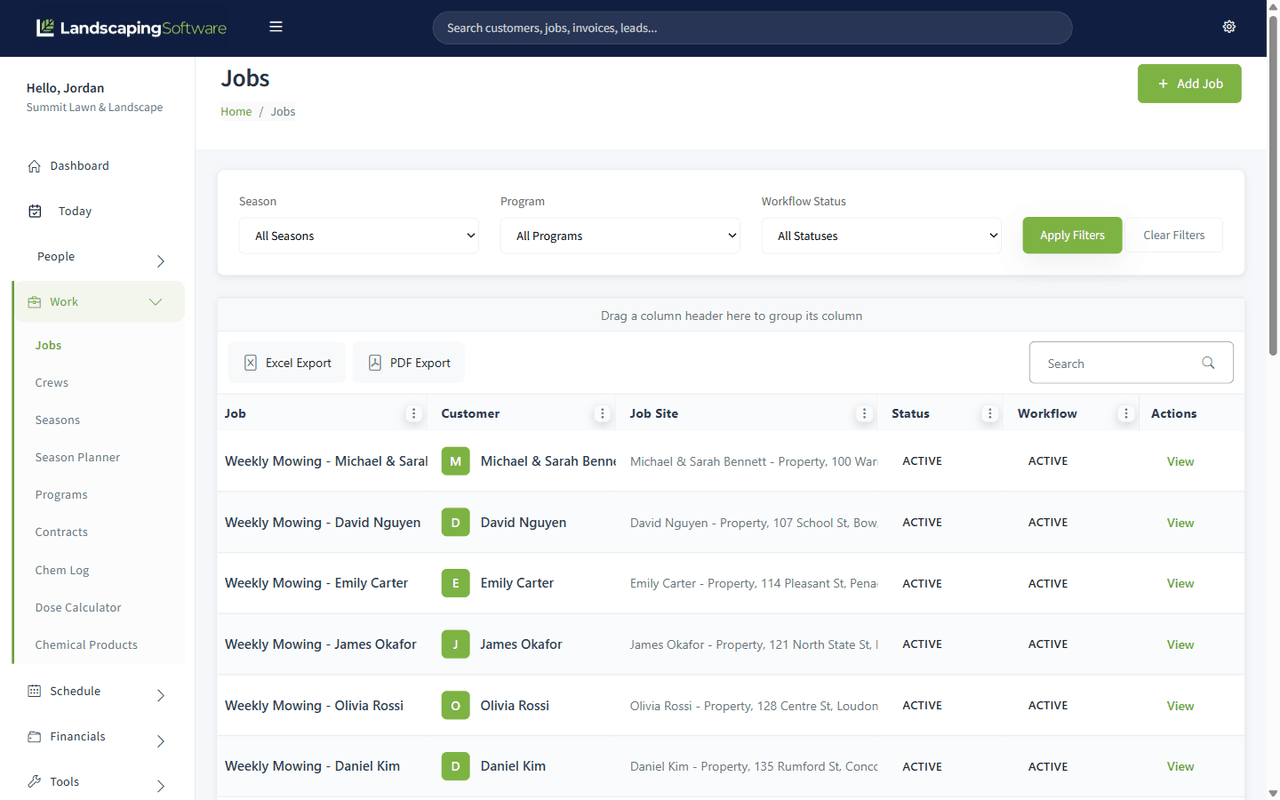
- Jobs live under Work > Jobs in the sidebar.
- Every job requires a customer and one of that customer’s job sites, so those must exist first. See How to Create a Customer.
- Seasons and programs are optional on a job but strongly recommended for recurring and multi-round work. See How to Set Up Seasons and Programs.
How a job relates to everything else
| Connected record | Relationship | Where you see it |
|---|---|---|
| Customer | Required. Every job belongs to exactly one customer. | Chosen on the Add Job form; shown on the Job Summary’s Customer & Jobsite card. |
| Job Site | Required. The property the work happens at — one of the customer’s job sites. | Chosen on the Add Job form after you pick the customer. |
| Season | Optional link. Groups the job into a service year (e.g. “Summer 2026”) so filtering, renewals, and visit generation stay inside the right window. | “Season (Optional)” dropdown on create/edit, plus Change Season and Copy to Season quick actions. |
| Program | Optional link. Enrolls the job in a multi-round plan (e.g. “Fertilization 2026”) so visits can be generated round by round. | “Program (Optional)” dropdown on create/edit, plus the Link to Program quick action. |
| Visits (appointments) | A job can have any number of visits on the calendar — added one at a time, on a recurrence, or generated in bulk from program rounds. | The Appointments tab on the Job Summary; also the Calendar and Routes pages under Schedule. |
| Products & Services | Line items attached to the job — what you’re doing and at what rate. Pulled from your catalog under Financials > Products & Services. | The Product/Services tab on the Job Summary. |
| Invoices & Payments | Invoices are created from the job (manually, or automatically if the job opts in to invoicing). Payments applied to those invoices show alongside them. | The Financials tab and the “At a Glance” totals on the Job Summary. |
| Contract | A job can be converted into a draft service contract. | The Convert to Contract / View Contract quick action on the Job Summary. |
A one-time cleanup can be just a job with a customer and job site — no season, no program. A recurring mowing job should be linked to a season. A fertilization job should be linked to both a season and a program.
Job status vs. workflow status
Jobs carry two related status fields:
- Status (on the create/edit form): Active, Inactive, or Completed. This is the one you set by hand.
- Workflow badge (shown in the job header and the Jobs list): Estimate, Active, Completed, Invoiced, Closed, or On Hold. This tracks the job’s lifecycle — for example, using Place on Hold sets it to On Hold, and marking the job complete sets it to Completed. The Jobs list has a “Workflow Status” filter for it.
Only Active jobs are picked up when a program generates visits, so a job that’s on hold or inactive quietly drops out of bulk visit generation.
Automatic invoicing (per-job opt-in)
Each job has a Set Job Invoicing toggle. When it’s on, you choose a Billing Mode:
- Per Visit — invoice each completed visit — an invoice is created automatically when a visit is marked completed.
- Monthly Fixed — one invoice per month — an invoice is created automatically at the start of each month.
- Seasonal Prepay / Manual — not batch-billed — nothing is billed automatically; when you mark the job complete, you’re taken straight to a draft invoice to review.
Automatic invoices are created for review on the Sales page — nothing is emailed to the customer automatically. Jobs with the toggle off are simply invoiced by hand whenever you choose.
What happens next
From here, the typical flow is:
- Create a job for the customer.
- Add products/services and adjust details on the Job Summary.
- Put visits on the calendar — by scheduling appointments or by generating visits from a program or season renewal.
- Invoice from the job’s Financials tab (or let the invoicing opt-in do it), then mark the job complete.
Tips & best practices
- One job per customer per offering per year. “Harbor View — Mowing 2026” and “Harbor View — Snow 2026-27” should be separate jobs with different seasons.
- Link recurring jobs to a season even when it feels optional. Year-end renewal tools find candidates by season; unlinked jobs are harder to roll forward.
- Put the year in the job name. It keeps the Jobs list readable once you have multiple years of history.
- Use the workflow filter. On Work > Jobs, filtering by Season, Program, and Workflow Status is the fastest way to answer “what’s still open this season?”
Troubleshooting
- A job is missing from a program’s generated visits — check that the job’s Status is Active, that it’s linked to the program, and that the program’s season is Active. See Generate Visits.
- A job shows “On Hold” and crews shouldn’t go — that’s the point: on-hold jobs are flagged in the header and list. Use Resume Job on the Job Summary when work restarts.
- You can’t find a job on the Jobs list — clear the Season/Program/Workflow filters (the Clear Filters link) and use the grid’s Search box.