Manage Your Products & Services Catalog (Products)
Last updated July 6, 2026 · Admins and office staff
Your Products & Services catalog is the reusable price list you draw from everywhere else in the app. Once an item is in the catalog, you can drop it onto jobs, estimates, and invoices without re-typing its name and price. This article covers listing, creating, editing, and deleting catalog items, and how they flow onto the documents you bill from.
Before you start
- Open the catalog from Financials > Products & Services in the sidebar.
- Decide whether each item is a Service (labor — mowing, aeration, a fert round) or a Product (a physical good you resell). It’s the only type distinction the catalog makes, and it’s used for badges and filtering.
- Know your Unit Price (what you charge) and, optionally, Unit Cost (what it costs you) for margin tracking.
Steps
View the catalog
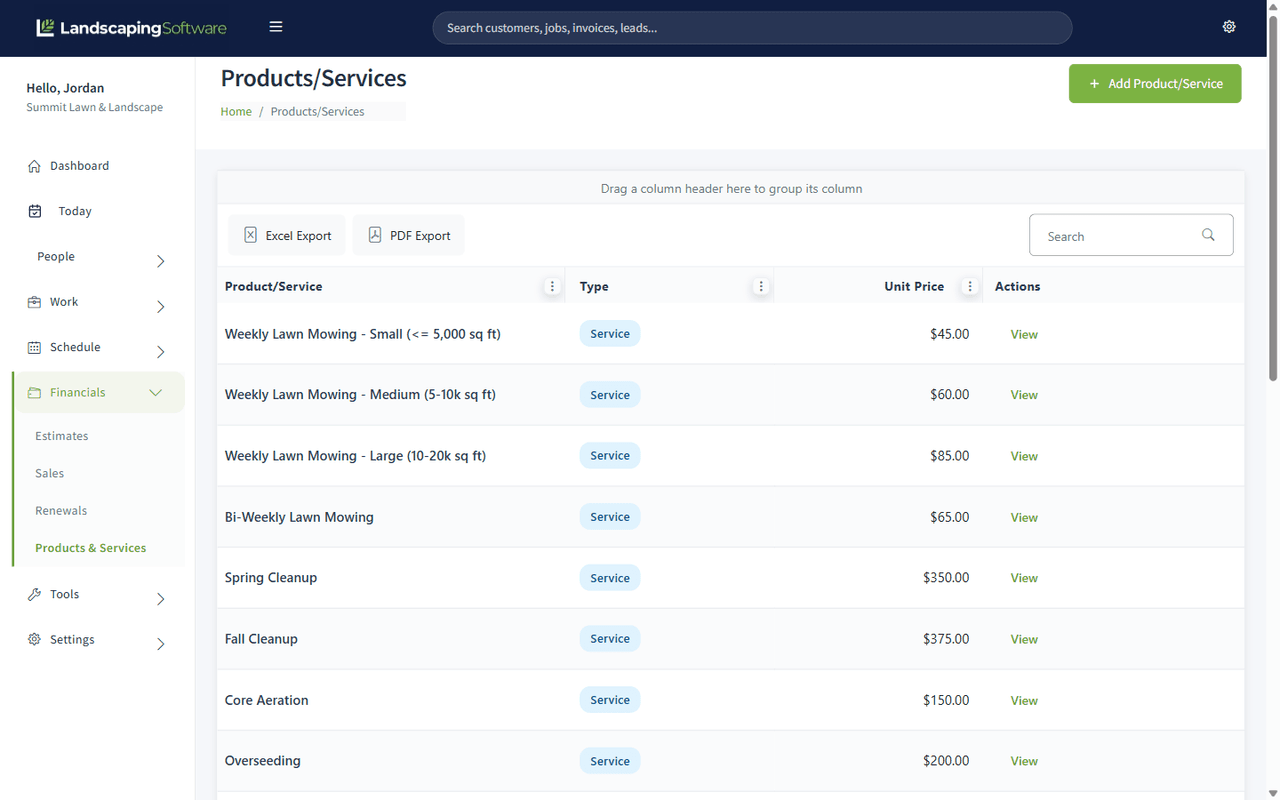
- Go to Financials > Products & Services. The grid lists every item with its Product/Service name, Type (Service or Product badge), and Unit Price.
- Use the grid’s Search box to find an item, and the column menus to sort, filter, or group. You can export the list to Excel, PDF, or CSV from the toolbar.
- Click any row (or its View button) to open that item’s detail page.
Create a product or service
- On the catalog page, click Add Product/Service.
- Fill in the form:
- Name (required) — what the item is called on documents.
- Description — optional detail.
- Type — choose Service or Product (you must pick one; “Select…” is not a valid choice).
- Unit Cost — your cost, defaults to 0.00. Cannot be negative.
- Unit Price — what you charge, defaults to 0.00. Cannot be negative.
- Exempt from tax — a toggle; turn it on for tax-exempt items.
- Click Submit.
Edit a product or service
- Open the item from the catalog (click its row or View).
- On the Product Details page, change the Name, Type, Description, Unit Cost, Unit Price, or the Exempt from tax toggle.
- Click Save Changes.
Editing the catalog item changes its default price going forward. It does not rewrite prices already saved onto existing jobs, estimates, or invoices — those keep whatever rate was on them when they were added.
Delete a product or service
- Open the item’s detail page.
- Use the delete control on the page and confirm.
Deletion is blocked while the item is in use. If it’s attached to any invoice, estimate, or active job, you’ll see: “This product/service is currently assigned to an invoice, estimate, or job and cannot be deleted.” Remove it from those records first (or simply stop using it), then delete. On success you’ll see “Product/service deleted successfully.”
Field reference
| Field | Required | Notes |
|---|---|---|
| Name | Yes | The item’s name on documents. |
| Description | No | Optional detail. |
| Type | Yes | Service or Product. Drives the Type badge. |
| Unit Cost | No | Defaults to 0.00; cannot be negative. Used for margin, not billed. |
| Unit Price | No | Defaults to 0.00; cannot be negative. The default rate that flows onto documents. |
| Exempt from tax | No | Toggle; on = the item is exempt from tax. |
How products flow onto jobs, estimates, and invoices
The catalog is the shared source for line items across the app:
- On a job: in the Job Summary’s Product/Services tab, click Add Product/Service and pick a catalog item. Its Unit Price auto-fills the line’s Rate; you set Quantity and can adjust the Rate per job. Amount = Quantity × Rate. See Job Summary: Managing Products & Services.
- On an estimate: you build estimate line items from the same catalog when quoting work.
- On an invoice: invoices draw their line items the same way, whether you create them by hand or the job’s automatic invoicing creates them for you.
Because line items copy the price at the moment you add them, you can safely raise a catalog price later without disturbing quotes and invoices you’ve already sent. The catalog is where you keep your standard pricing current; the line item is where you tailor a specific job.
What happens next
- After Submit, a new item lands on its detail page with “Product/service created successfully!” and is immediately available in the pickers on jobs, estimates, and invoices.
- After Save Changes, you stay on the detail page with the updated values.
- After a successful delete, you return to the catalog list.
Tips & best practices
- Set the Type correctly. Service vs. Product drives the badge and makes filtering your catalog useful as it grows.
- Keep Unit Price current rather than editing each line item — catalog changes flow onto future line items automatically.
- Fill in Unit Cost if you want margin visibility; it’s stored but never billed.
- Don’t delete history. If an item is retired but tied to past invoices/estimates/jobs, leave it in the catalog — deletion is blocked precisely to protect that history.
- Name items the way they should read to customers, since the name appears directly on estimates and invoices.
Troubleshooting
- “Product/service name is required.” — Name is blank; fill it in.
- “Select a product/service type.” — you left Type on “Select…”; choose Service or Product.
- “Unit cost and unit price cannot be negative.” — remove the negative value.
- “This product/service is currently assigned to an invoice, estimate, or job and cannot be deleted.” — it’s in use. Remove it from those records (or keep it), then try again.
- “The selected product/service could not be found.” — the item was already removed or the link is stale; refresh the catalog list.
- An item isn’t showing in a job/estimate picker — confirm it was saved (it appears in the catalog list); the pickers read the same catalog.